

How To Create Dynamic Block
Dynamic block was first introduced in AutoCAD 2006. We cover this topic in several articles. They are published a few years ago, but still relevant to current version of AutoCAD.

If you want to learn dynamic block, then this tutorial series will help you.
1. Create a wall
This is the first post of the dynamic block tutorial series. We introduce you how you can add a parameter and link an action to it. The sample used in this post is only a simple brick wall. It allows you to use it to draw straight walls without having to draw several parallel lines and hatches.
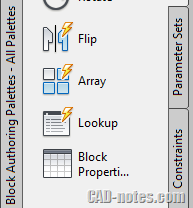
Read how you can create a wall dynamic block here.
2. Create a column
In this next tutorial, we create a rectangular concrete column. You will add two parameters and two actions. Furthermore, we cover about parameter properties. You will learn to control the stretch size and make it stretch to both direction.
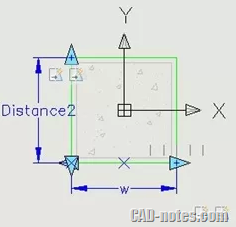
Learn how to create a column dynamic block here.
3. Create a door
In this tutorial, we cover more. This time you create a door. Then add a parameter then link 3 actions to that parameter. To add more fun to this, we use a little magic that can help you to 'trim' wall when you place the door.
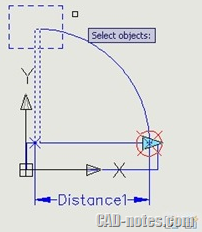
Learn how you can create a door dynamic block here.
4. Add more action to door
In this tutorial, we add more action to the door. We add a flip action to allow you flip the door opening. We also add an alignment parameter to allow your door to align automatically.
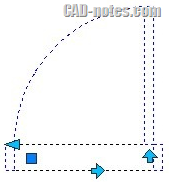
Learn about flip parameter and alignment parameters here.
5. Using visibility states
Visibility states is the simplest way to make a dynamic block. However, it is very useful if you want to show objects in different ways or different variations.
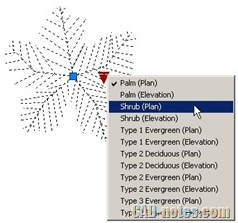
Learn how you can control objects' visibility in dynamic block here.
6. Using geometric and dimensional parameters
When dynamic block was first introduced in AutoCAD, AutoCAD didn't have parametric features. Now that AutoCAD has it, you can also use it in dynamic block. It works differently with dynamic block action. However, it allows you to control dynamic block by the object size, not by action.
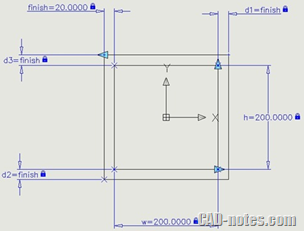
Go to this tutorial if you want to learn how to create dynamic block using parameters.
7. Using fields in dynamic block
This is an example of using dynamic block and other features. We use a symbol and a field to automatically show coordinate of that particular point.
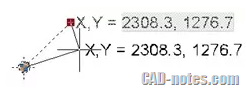
See how you can create an automatic coordinate label using dynamic block here.
Learn from our AutoCAD block best practices e-book
If you are interested to learn more about AutoCAD blocks (not only dynamic block) you might want to check our e-book: AutoCAD block best practices.
This e-book covers thoroughly about AutoCAD blocks. From basic to advanced tutorial. You can learn how to create block, how to use attributes, fields, extract data to make reports, and more.
Check this page if you are interested to purchase the e-book.

I work as a Sr. Technical Consultant in Tech Data Advanced Solutions Indonesia. I've been using AutoCAD since R14 and Revit since Revit Building 9. I occasionally write for AUGIWorld magazine and also active in Autodesk discussion forum.
I'm an Autodesk Certified Professional (ACP) for Revit Architecture and AutoCAD. I'm also a member of Autodesk Expert Elite, appreciation for individuals who give contribution to Autodesk community.
Connect with me on twitter or LinkedIn
How To Create Dynamic Block
Source: https://www.cad-notes.com/autocad-dynamic-block-tutorial-series/
Posted by: milleryoublituff.blogspot.com
0 Response to "How To Create Dynamic Block"
Post a Comment